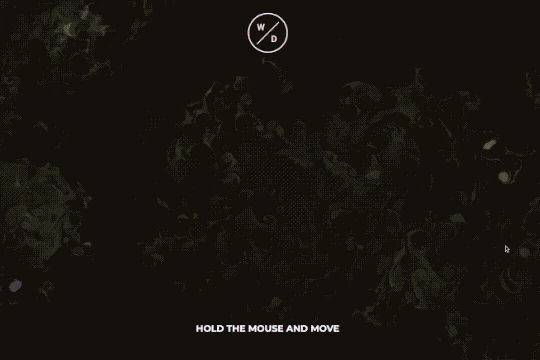
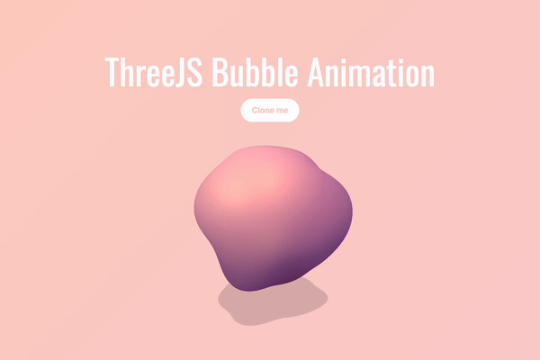
The Interactive Bubble Animation Three.js is a fun and interactive feature for your Webflow site that is powered by Three.js. This bubble blob follows the movement of the mouse around the page and interacts based on its location, adding a dynamic and interactive background animation to your site. This cloneable design, created by Anil Pervaiz, is categorized as Three.js, Background, and Animation and can be easily implemented on your Webflow site. If you're looking to add a playful and interactive element to your site, the Interactive Bubble Animation Three.js is a great choice.
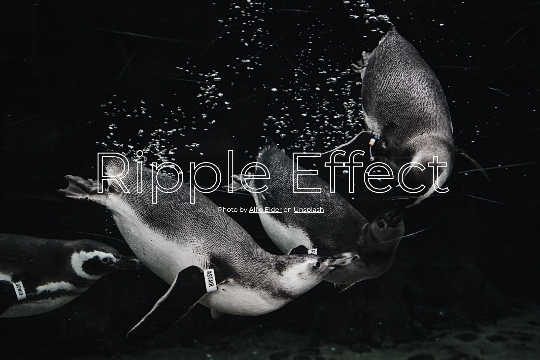
A fun way of adding a water mouse hover ripple effect to your Webflow site. Simply add a tiny code and the javascript library and you're all set.
A fun way of changing the gradient background color via mouse in Webflow. Please note this will not work in Firefox. This is a native Webflow interaction and just a single line of CSS code. The CSS controls the pointer events to none while the interactions control the location of the blur and it's surrounding effects.
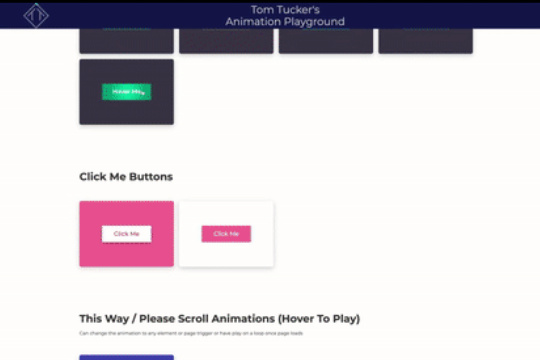
A huge selection of premade Webflow animations, including animated buttons, click buttons, circular hover buttons, scroll down animations, nav link animations, tab animations, search bars, social media buttons, text animations, contact cards, blog cards, product cards and more.
Here's a beautiful WebGL colorful background animation on page load. A great way to add extra color and a dynamic element to your Webflow site.
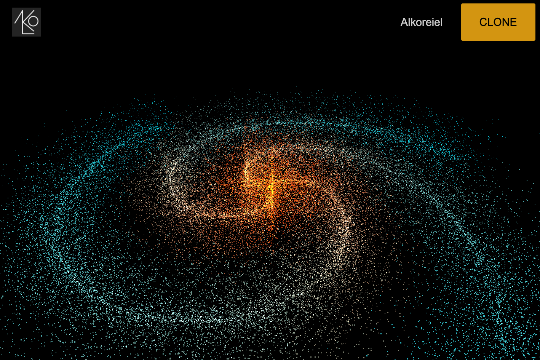
A two colored spiral galaxy animation for Webflow created with Three.js. This spiral galaxy spins in the background of your Webflow site and offers zoom in/zoom out functionality by the scroll wheel on your mouse.
Add a liquid metal background animation to your Webflow site via WebGL. Please note that this example relies heavily on scripts and custom code so you'll need to add the custom code found within the page settings.
A fun three.js background animation for your Webflow site. Flying butterflies will come from the bottom left hand corner of your page and fly up to the top right and off of the screen. A fun background animation effect powered by Three.js and Webflow.
Here's a demonstration of using three.js for the background of your Webflow site.
A fun, interactive bubble blog for your Webflow site driven by Three.js. This interactive bubble blob follows the mouse around the page and moves and interacts based on it's location. A fun way of adding a dynamic and interactive background animation to your Webflow site.
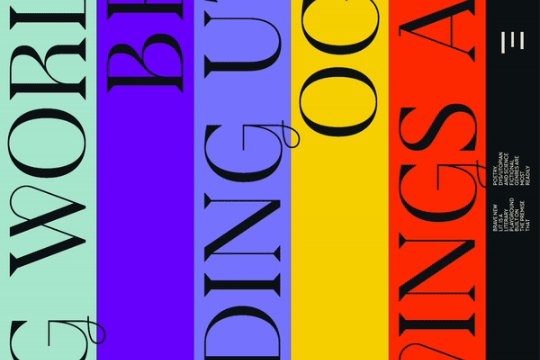
Horizontal vertical marquees are easy to create in Webflow. However vertical infinite scroll marquees aren't as prevalent. Here's a way to create a vertical infinite scroll marquee in Webflow. This example even includes a masking hover over effect for each different scrolling marquee. Each marquee is built with native Webflow interactions and no custom code.
A beautiful text hover animation for Webflow built entirely from native Webflow interactions. On hovering over the circle the text changes its position on the page. A great way of adding a unique text animation effect to your Webflow site.
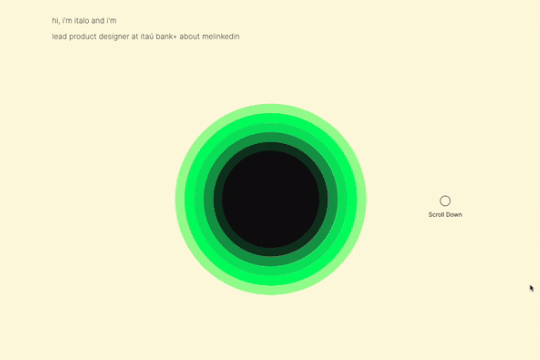
A sun circle animation that grows based on the page scroll in Webflow. This entire animation is built natively with Webflow interactions and requires no custom code. A great example of how you can use Webflow's native interactions to build in depth, multi stage animations based on page scrolling.
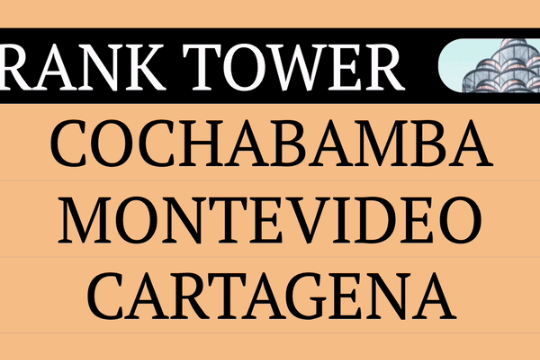
An infinite scroll marquee on hover interaction for Webflow. When a user hovers over a link an infinite scroll marquee animation is displayed. This is perfect for a menu or navbar within Webflow in which you'd like to add extra emphasis and animation design to. This was built entirely from Webflow's native interactions and requires no custom code.
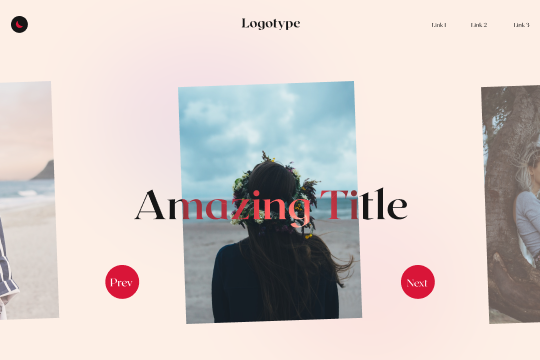
A native Webflow CMS driven slider that uses Splide.js to create unique next/previous buttons and transitions. Splide.js is a popular slider alternative that many Webflow designers use to customize their Webflow sliders beyond the capabilities offered via the standard slider functionality. Be sure to add the custom code found in the page settings for this to work properly.
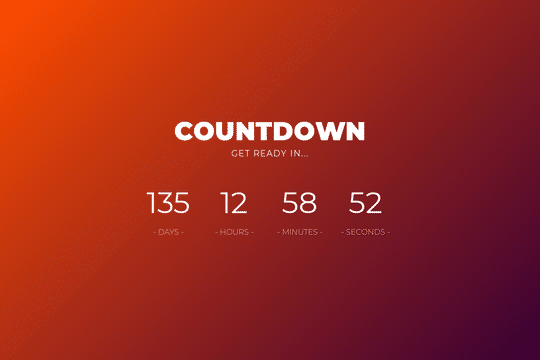
Easily add a countdown or launch timer to Webflow. With this you can easily add this into your own project. The numbers have separate IDs for Hours, days, Minutes and of course Seconds. To change the time simply go into the Custom code and change the date. The date is in the following format, "2018-09-28-00"