


How to Create Editable Member Profiles Page in Webflow using Webflow, Zapier and Airtable



Tools mentioned




Tutorial tags
Description
Learn how to create a member profile page that can be edited by your members using Webflow, Zapier and Airtable
Overview
Using Airtable table to allow members to update their current profile
Setting up your Airtable to sync with Webflow and Memberstack
Using Airtable automations to populate blank records in your table
Creating an Approved view status in Airtable
Setting up a profile approved zap
Resources
Transcript
hey friends welcome back to the channel
my name is connor i'm the founder of the
unicorn factory and today
i am going to be breaking down how i
allow freelancers on the unicorn factory
to update their profiles themselves
this has been one of the most requested
tutorials the most asked question ever
since i've posted my how to build a
marketplace without code tutorial
and i am happy to say that after
hours of filming and editing this i am
ready
to show you how it works so please
put your phone on flight mode get a pen
and paper
you might have to watch this a few times
but
let's dive into it so let's start off by
me showing you how it works so
right now we're looking at one of the
freelancer profile pages which is my own
actually
and we have here some dynamic content
which is the rates that a user can
update
the uh availability the bio case studies
that are listed in the user's profile
and the individual skill tags or service
tags
um that a freelancer can list in their
profiles
so if a user wants to update their
profile all they need to do is click on
my account go to the settings tab
click on update profile and then click
on refresh profile what that will do is
it will redirect them to an ear table
form where they can just go ahead
and fill out all the information that
they want to update including their
profile picture their job title
their bio what services they offer their
link and their portfolio link if a user
decides that they do not want to change
their profile picture then all they need
to do is just leave the attachment file
for the profile picture in the update
form
blank so once a user has filled out the
update profile form all they need to do
is click on submit for review
and that is where the automation starts
cool so now that the freelancer has
submitted all that information
now what we need to do is approve it and
then once approved
trigger the automation that overrides
the existing webflow content the
existing air table content
and potentially also the member stack
content for that particular user but
before we start with the automation side
of things i'm going to need to show you
how you actually set up the form and how
you set up the back end of ear table in
order to make sure that the data
transfer
between web flow air table and member
stack
happens smoothly cool so this is a view
that you might be looking at
for your freelancers right now it's only
me in here
and the table is currently set up the
way
that i explained it in the freelancer
onboarding system so you've got a user's
current status
you've got the email you've got your
first name you've got your job title
photo
webflow item id and airtable item id
which is going to be super important for
the next few steps then we've also got
the bio skills and locations so
a user will fill out all of this
information when they sign up initially
so the secret to allowing a user
to update their profile is to basically
trigger the overriding of old
information
in order to figure out what information
to override we need to ask the user
which is where we create the ear table
form
and so i'm going to start off by showing
you how to create your table form so
first create a brand new table and we're
going to call this table
user updates now inside of this table
we want to add all the fields that we
want to allow the user to override
so once you've added all the fields that
you want to allow your user to update
your table should look
somewhat like this and it should
actually be quite similar
similar to your original user table now
there are two more fields that
are super important to add firstly we
want to add a linked
field referencing the original profile
that we are going to update so we're
going to create a link
field that links back to the original
table and when they ask you to add a
lookup field
just pick webflow item id and pick
air table id and then just click add two
fields
and you should be all good next what you
need to do
is you need to add a drop down for the
status
next you want to give the status three
options
one's gonna be review the next one's
gonna be approved
and this one and the last one is let's
call it
done once we've completed all those
steps what we wanna do is we want to
convert this table here into a form
so just click on form call it update
form
and then your form should look something
like this now the first tip that i'll
give you is
remove the user because
if a user is looking at the form
they will be able to see all of the
users that are currently sitting in your
database so say on the unicorn factory i
have 550 freelancers which means that
they'll automatically see this and
they'll also automatically see all the
other ones
so the way we get around it is by
removing the user field
and instead adding a new field
called email i like to move the email
field to the top
i will also remove the name field
because that is not the actual user's
name it's the name of the
record id and then i'm also going to
remove the status field which should
leave you with a form that allows a user
to add their email
add their new updated job title add
their photo
add an updated bio and select the skills
and location
so that is the first important step that
you've done so now that this form is
created you can in theory put it on your
freelancer dashboard
like i have or you can even send it to
your users by email
and whenever they fill out that form you
can take them through the process of
updating their profile so i'm going to
show you specifically what the user
experience looks like when they fill out
the form
now so let's assume that conor test
gmail
wants to update their profile now this
is what they would do
they would update their job title add an
image
they would add a bio and all the new
skills that they want added to their
profile as well
as a location
and then all they need to do is click
the submit button and all of that
information that they just submitted
will be sent to the user updates table
inside of your table one thing that i am
going to quickly show everyone
is what i do to create record ids
so we're going to call this one updates
id
all you need to do is click on formula
click
wreck select record id and what that
will do
is it will automatically populate the
ear table
record id for this particular record in
that particular table
now you might have noticed that the user
table and the status field
is currently empty and so we need to
populate that somehow so you can do that
manually or
you can use air table automations to
automatically populate it so all you
need to do to create the ear table
automation is click on automations click
on create
automation and then go populate
update record fields
now again the way the air table
automations works is very similar to
zapier
in fact you could use zapier to do the
same thing
however because it's still running
inside of air table and you're only
updating a record within the air table
and not on any other platforms it
actually makes more sense just to use
ear table automations so the way you do
it you pick your trigger
and the trigger that we're gonna pick is
when a record is created
then we pick the table which in our case
is user updates
we run a test uh test ran successfully
you can actually see down here
what required it was and we can already
see yep it's got all of our
information in there so i'm going to
click done and then what we want to do
is we want to add an action and the
action that we're going to choose is
we're going to update a record
then it asks us what table is that
record in it's in user updates
and then it asks us to dynamically
populate the record id
so all we need to do is click the blue
plus button go back to step one
because it is this record that we want
to update and that is the record that
triggered
the automation then we just click on
record id and it will automatically
populate now the question is what fields
do we want to update
so the first field that we want to
update is the
user field so we just scroll down select
user
and then when it asks us to choose the
field
what we want to use is in step
one the email
field so the email field is what the
user submitted
right when they filled out the form and
now we want to send
this information here into the user
field
because that user already exists
in the user table with that particular
another field that we want to update is
the status field
so we're gonna just change that into
review
so you can just type in review then we
click done
then we click run test and then you can
see how it automatically
populates the information cool so now
we've pretty much
got the basics set up we've got a user
table with all the information of our
existing users
and we've got a user update table which
means that when a freelancer fills out
the profile update form that all that
information gets sent there
now what we need to do is we need to
figure out a way to get that information
from the user update table
into the user table in air table but
also into web flow and all the other
platforms that you want to update
and in order to do that we're going to
be using zapier and again
with zapier we need to define a trigger
in an action
so the next step that we need to focus
on is defining the trigger inside of ear
table
cool one last thing actually before we
go to setting up the trigger
one thing that i do recommend doing is
when you are setting your actions
always add a select message as a
notification
that you can send to one of your
channels only because that way you can
get notified
when a freelancer or one of your users
requests a profile
update and also make sure that the
automation is turned on because if it's
not turned on people will be
filling out all the information and
airtable won't be updating it so it's
that button in the top
right corner cool so next up we need to
define our trigger
and our trigger is going to be when a
record moves from the
review stage into the approved stage
so let's go and set that up firstly i
like to move the status right to the
beginning
because i kind of feel like it's where
it belongs
but you can leave it wherever you want
so what we want to do is we want to
create a new view by clicking on the
grid button in the bottom left
and what we're going to call this is
we're going to call this the approved
view and now in order
to make sure that only the relevant
records
are in this view we want to apply a
filter and we want to say that
the status is
approved so now what it will do is it
will filter out all records
that are currently not in the approved
stage
and then and this is where the magic of
views happens
when i change the update record here
that connor test that gmail submitted
from review
to approved what happens is it moves it
into that view
and now i can use zapier to make that
the trigger
and that's what we're going to do now
cool so now we're back in my actual
zapier account with the existing zap
set up as it's currently running and i
just want to talk you through each
individual step
so as we defined we have a new record in
view
which is in the profile updates table
when a record
is moved into the approved view now
if you saw last week's video with my
freelance onboarding process
you'll know that if you want to send
rich text
or to web flow what you need to do is
you need to convert the air table mark
down from the bio section
into html and that is what happens in
step number two
now someone asked how exactly i do it um
it is you just choose the formatter by
zapier event you choose
action as your text as your
your action event is your text um
and then when you select the transform
you select convert markdown to html
and then in the input you just drop from
the
record number one uh from your first
step in the trigger
the bio field so in my case here
it would be this field here
that i would convert from markdown into
html and then you can send that data
to webflow so the third step that i want
to take is i want to
update the original record
inside of here table so in our example
we want to
update this user here now the reason
why it's important to update that record
is because when you use tools like
parabola to sync platforms between each
other
you want to make sure that this
information is up
as up to date as it could possibly be so
that includes
any updates that a user requests get
sent over there
once airtable has updated now what i
want to do is i want to update the
webflow item
and now the way that that works is that
you
just go ahead select the update live
item in
webflow and it will ask you to select
your site
your profile and then also your webflow
item id
you will have to dynamically populate
that webflow item id that but you can
get it
from your user updates field that you
got in step one
from the webflow item id lookup and it's
for that reason friends
that you need to store your webflow item
id inside of webflow
up inside of airtable otherwise you will
not be able to update it
so always make sure that when you
linking your users to also
use a lookup for the webflow item id and
for the ear table id
so that you can make these updates in
zapier next up i have set up a custom
request
for the um skills and services that i
now want to send
to um webflow
again this is a bit more of an advanced
thing that i'll cover in a future video
and then last but not least i just send
an email notification to the freelancer
letting them know that i have
made the update to their profile and
they'll be good to go
cool so that is how i do user profile
updates through
unicorn factory on my webflow site and
you know it does the trick
um it's a bit of a hack clearly but
as long as it works it works and i think
that if
allowing users to update their profile
is something that is incredibly
important
then this is hopefully a way that you
can do it
now one thing that i would say about
profile updates is you know this is like
a real
fancy way of doing it or a highly
automated way of doing it
but you know before setting up all of
the automation like one thing that you
could do is just send people a link to
the form
instead of hiding it behind um like
membership sites and all that kind of
stuff and just follow that
methodology of collecting information
and then using that information to
override certain fields
i also use a similar strategy when it
comes to updating case studies but that
there is a bit more complicated because
one user can have multiple case studies
but i'll cover that sometime
in 2027 or something like that but i
hope that you enjoyed this video
um thanks for sticking around to the end
um i
would love to know what you thought
about it like if you
if this is how you thought i did it if
you have any other ways that you want to
do it
um if there was any parts of it that
confuse you then
yeah just let me know in the comments a
i love answering these questions and b
i hear comments is fantastic for the
search algorithm be sure to have liked
and subscribed
this video and subscribe to the channel
and i look forward to seeing you back
here for the next one
bye
Related tutorials



How to build a full fledged member directory site with only no-code tools Webflow, Memberstack and Parabola.

Learn how to customize your Webflow forms. In this video you'll learn how to customize styling, placeholder text, including using select2.js for multiple select boxes

How to get Airtable to power Webflow with Nocodeapi as a Headless CMS

Learn how to connect Webflow forms with Airtable & Zapier. Learn how to integrate the forms, create a review process in Airtable for approval, and then update Webflow CMS automatically.
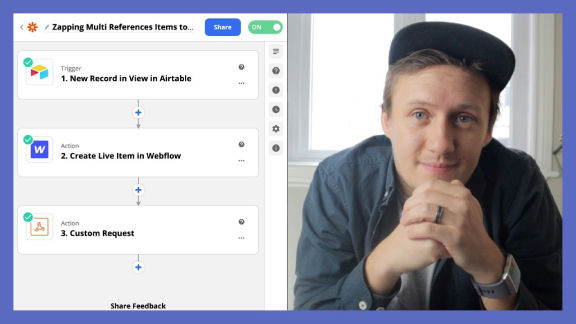
Learn how to populate Webflow multi-reference CMS items inside of Webflow using Airtable and Zapier

A quick and dirty guide to creating an e-learning platform using Webflow, Memberstack, Airtable and Zapier.
How to use Webflow reference fields to create content rich profile pages in Webflow using Zapier
Learn how to use Airtable webhooks to connect your Webflow site to Memberstack and Stripe

More from author

Learn how to create a member profile page that can be edited by your members using Webflow, Zapier and Airtable
How to build a full fledged member directory site with only no-code tools Webflow, Memberstack and Parabola.
Learn how to populate Webflow multi-reference CMS items inside of Webflow using Airtable and Zapier
A quick and dirty guide to creating an e-learning platform using Webflow, Memberstack, Airtable and Zapier.
How to use Webflow reference fields to create content rich profile pages in Webflow using Zapier
Learn how to use Airtable webhooks to connect your Webflow site to Memberstack and Stripe

Learn how to greatly reduce your design development time with global swatches . Learn what swatches are, why you should use swatches and tips and tricks for implementing swatches on your designs.

Learn how to take Webflow search and filtering to the next level with Jetboost. Learn how to setup filtering,