Particle.js Example

Try the cloneable below

Cloneable tags

Description

The Particle.js Example is a guide and an example of how to use Particle.js on a Webflow site. Particle.js is a fun and dynamic way to add a background to your site. In this example, a new particle is added every time you click on the background of the site, creating an interactive and engaging effect. The Particle.js Example is easy to use and can be easily implemented into your Webflow site. Simply add it to your page and customize it to your liking. This Webflow cloneable is classified under the categories of Background and Animation, and was expertly crafted by Eli Shmerler. Whether you're looking to add a touch of whimsy to your site or simply want to give your visitors something fun to interact with, the Particle.js Example is a great choice.
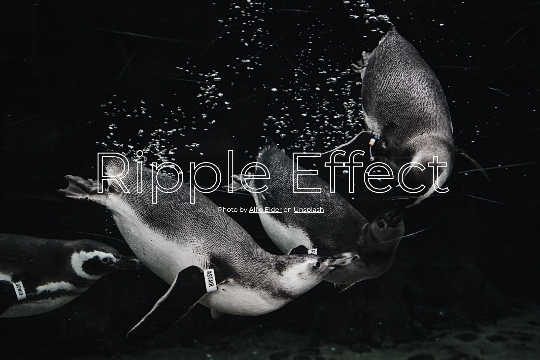
A fun way of adding a water mouse hover ripple effect to your Webflow site. Simply add a tiny code and the javascript library and you're all set.

A fun way of changing the gradient background color via mouse in Webflow. Please note this will not work in Firefox. This is a native Webflow interaction and just a single line of CSS code. The CSS controls the pointer events to none while the interactions control the location of the blur and it's surrounding effects.

A huge selection of premade Webflow animations, including animated buttons, click buttons, circular hover buttons, scroll down animations, nav link animations, tab animations, search bars, social media buttons, text animations, contact cards, blog cards, product cards and more.

Here's a beautiful WebGL colorful background animation on page load. A great way to add extra color and a dynamic element to your Webflow site.

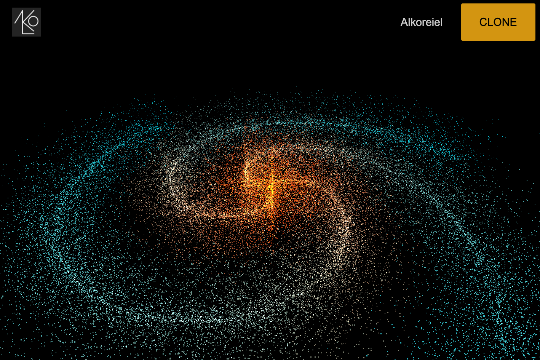
A two colored spiral galaxy animation for Webflow created with Three.js. This spiral galaxy spins in the background of your Webflow site and offers zoom in/zoom out functionality by the scroll wheel on your mouse.

Add a liquid metal background animation to your Webflow site via WebGL. Please note that this example relies heavily on scripts and custom code so you'll need to add the custom code found within the page settings.

Here's a demonstration of using three.js for the background of your Webflow site.

A liquid 3D mesh net with gradients and transitions engulfs the background of your Webflow site. Inside there are shaders and code found in the page. You can adjust the values to customize the effects of this liquid 3D mesh design.

DRAG
Real-time sorting by

An exploding text particles animation using Three.js in Webflow. A good demonstration of how to add Three.js to your Webflow site. In this cloneable the text begins to morph and explode as you move the cursor over it. Please note that this uses custom code found in the head and closing body tags of the page settings.

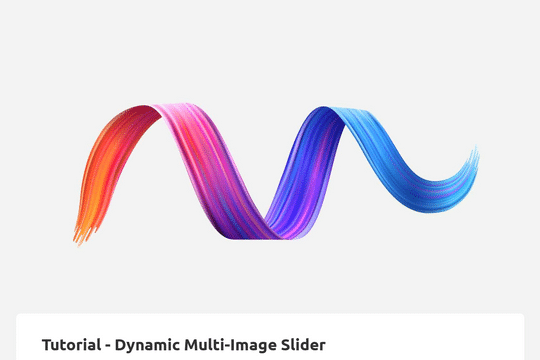
Looking to add a dynamic image slider that can change based on categories? Here's way to add a dynamic image slider driven by Webflow CMS that can be filtered by categories or links of your choosing. The amount of slides is determined by the amount of images added to the multi-image field within collections.

Here's an easy way to create a masked video in text in Webflow. No custom code is required. This was created with an SVG file and added interactions to zoom in while scrolling.

Here's a guide and an example of Particle.js on a Webflow site. Particle.js is a fun way of adding a dynamic background to your Webflow site. In this example a new particle is added every time you click on the background of the site.

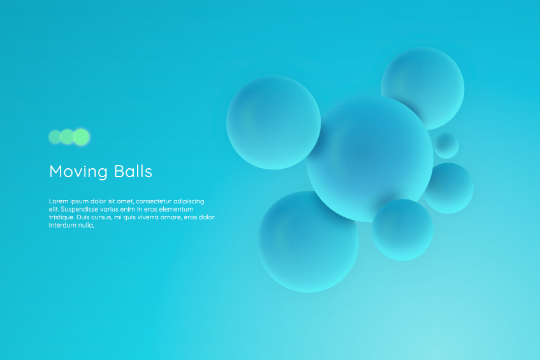
Here's an example of creating 3D interactive balls via Webflow using only divs and color gradients, no images or custom code was used to create this effect. When someone moves the mouse on the Webflow site the balls/divs move in different directions.

Four unique methods for creating 3D elements in Webflow natively without using any type of code. No custom code or lottie animations were used and all of this was accomplished naturally via Webflow interactions.

DRAG
Real-time sorting by